Open the portal
Scan a QR code or open the branded support portal on mobile or desktop.
How it works
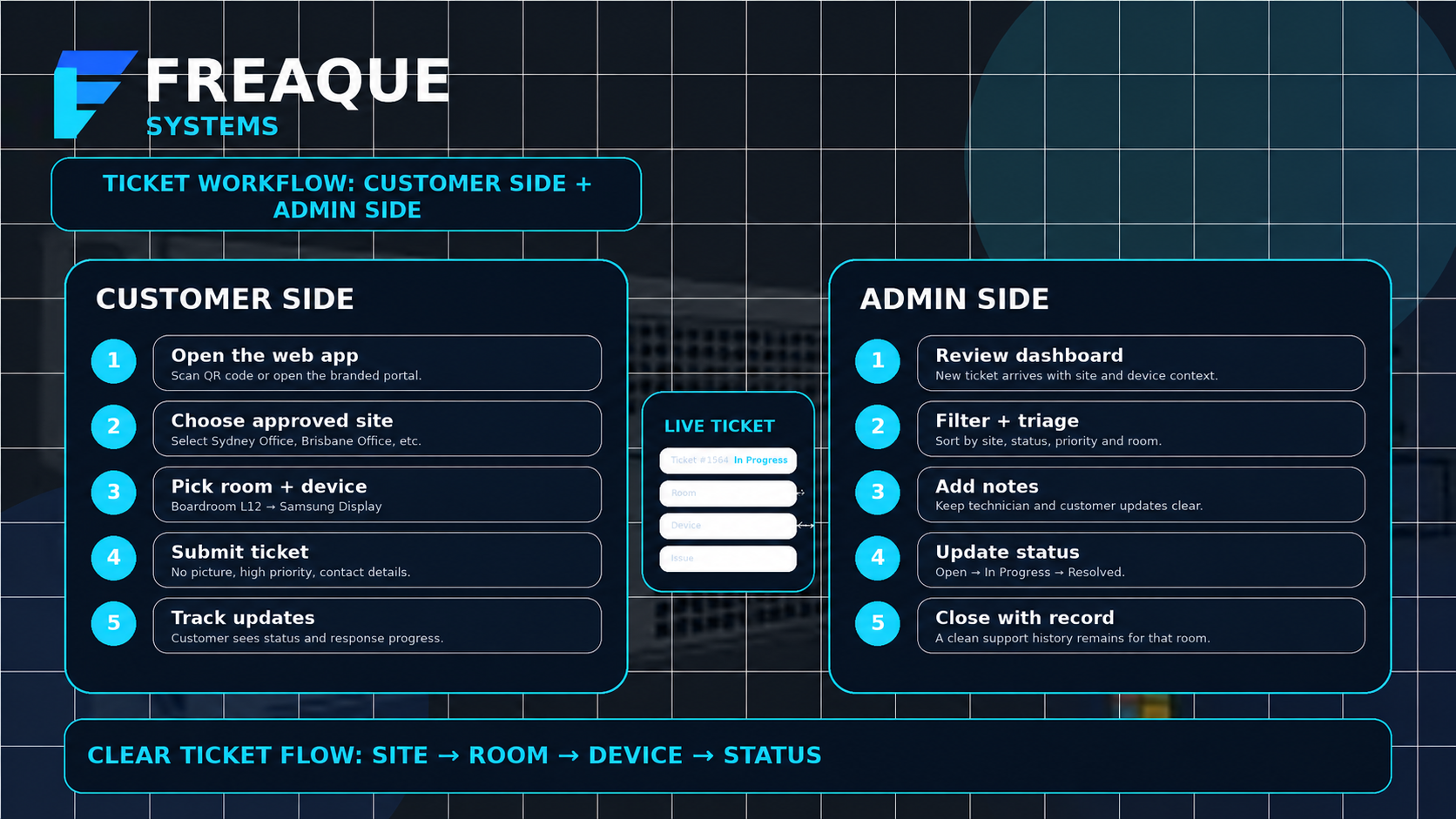
The customer side is designed to make ticket raising fast and clear. The admin side is designed to help your team triage, communicate and resolve issues more professionally.
Customer side
Scan a QR code or open the branded support portal on mobile or desktop.
Choose from approved sites so the request starts with the right location context.
Choose the room, level or functional equipment location within the site.
Choose the exact display, microphone, camera, DSP or other equipment item.
Send the ticket and follow status updates and communication in real time.
Admin side
This page focuses on the customer-facing workflow and the admin workflow only. It does not showcase any owner-side platform view.
New requests arrive in the admin dashboard with site, location and device context included.
Admins can filter by site, location or status to prioritise the right work quickly.
Ticket detail helps the admin understand the space and equipment involved before actioning the issue.
Internal notes and customer-facing updates help maintain an organised workflow.
The client sees progress while the admin team maintains a professional communication trail.
Why it works for AV
Support requests arrive with site, room and equipment detail already attached.
Filtering, notes and status management reduce scattered communication.
A premium branded interface builds confidence and clarity for customers.
Ready to explore more?
Review the full support portal feature set, discuss possible subscription tiers, or test the live experience.